Project status

Personal project · Experimental prototype · Not currently available for download

This page gathers the screenshots and video demonstrations used throughout the site, together with their original captions. Use the filters to browse photos or videos.
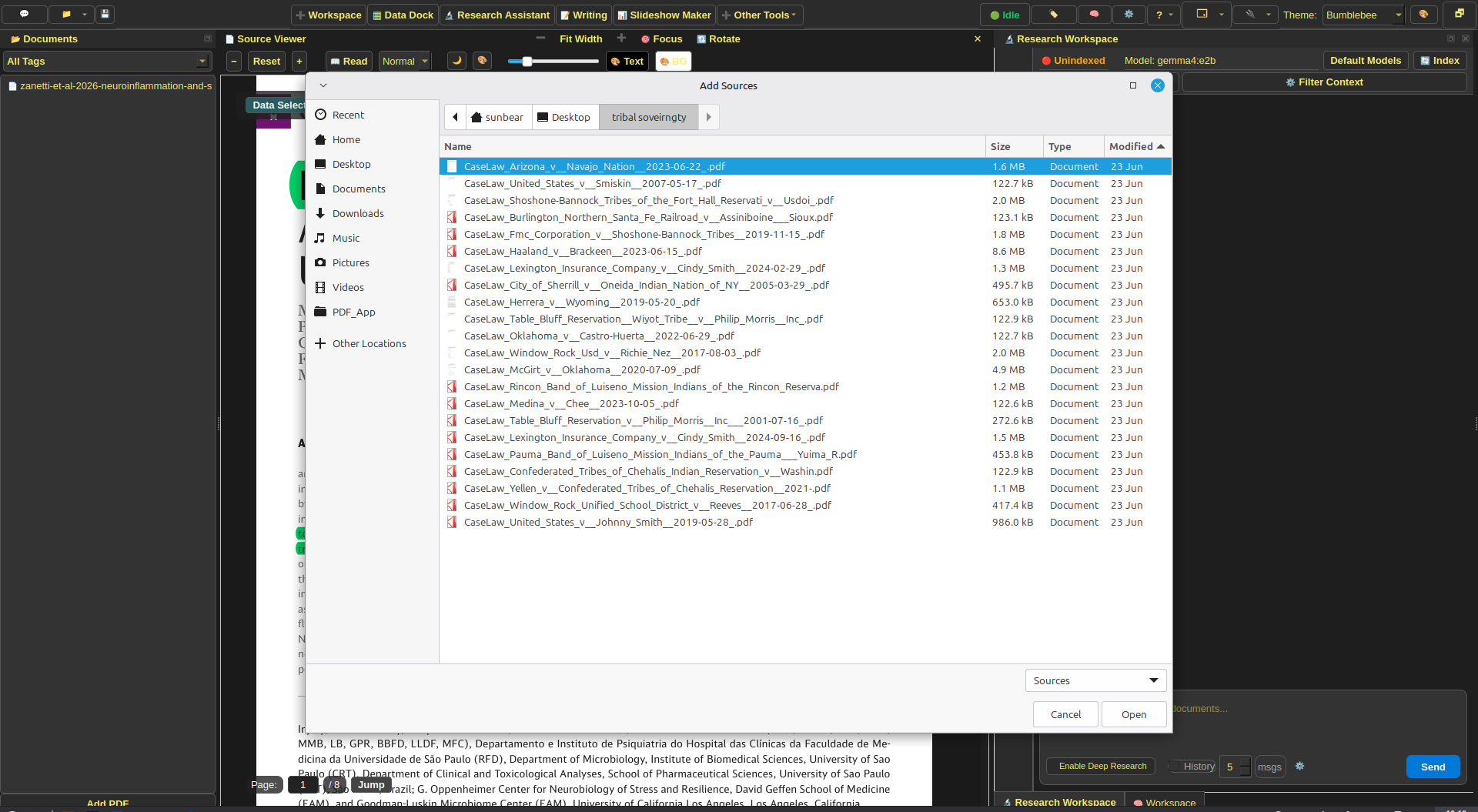
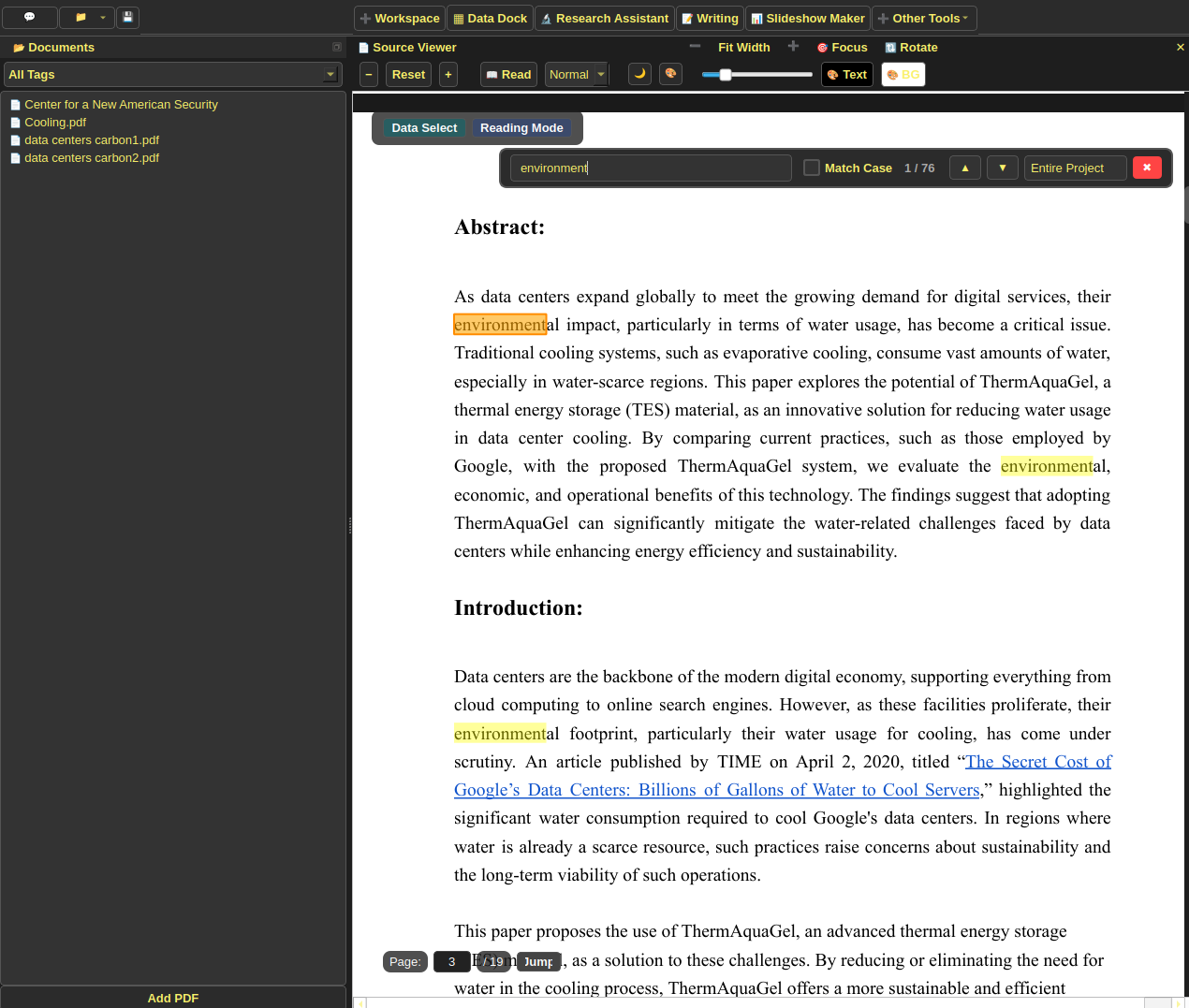
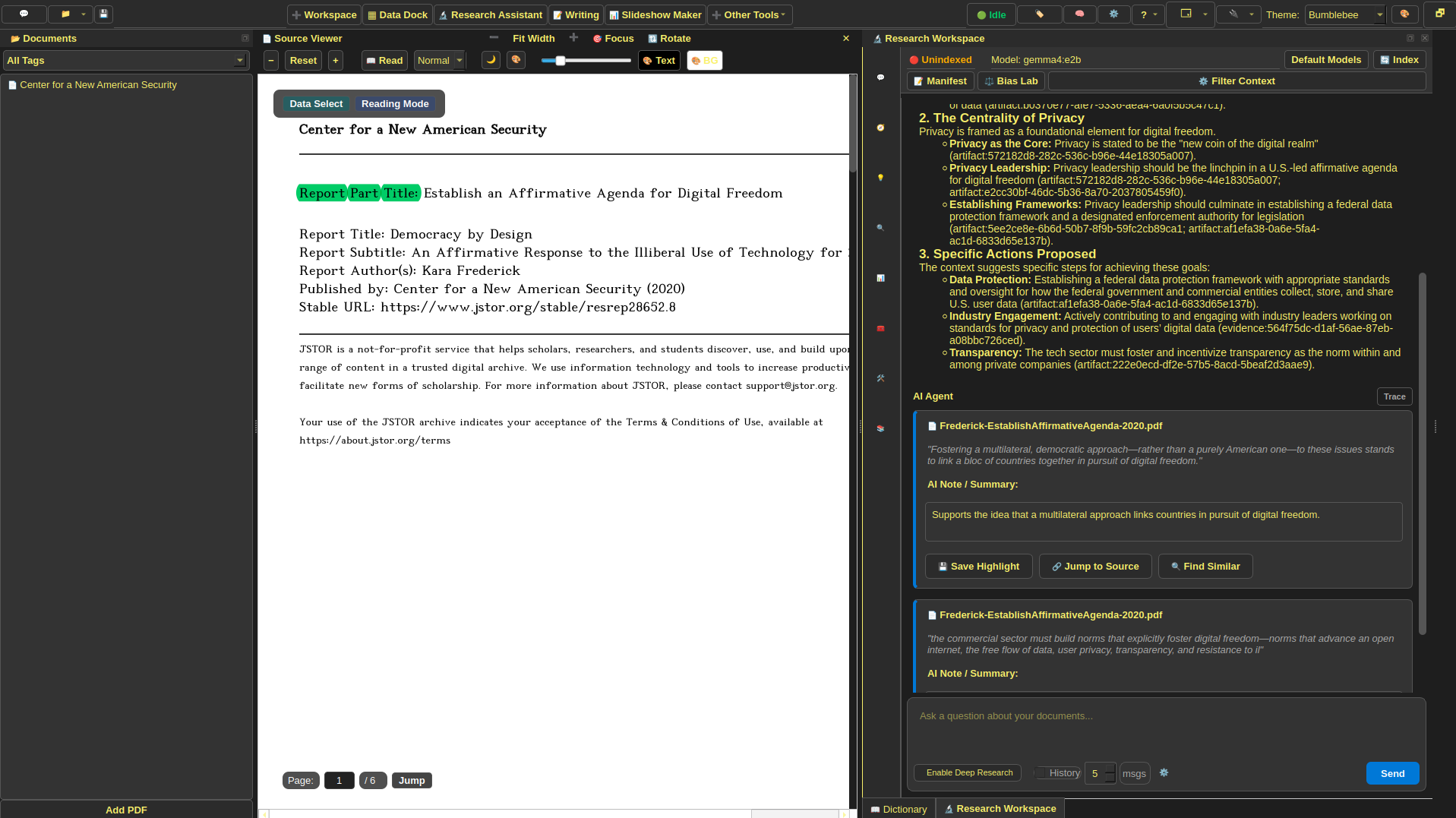
Papyrus main window with a medical paper open, a highlighted passage, a source list at left, and research controls at right.
Figure 1. The current main window brings a source reader, project navigation, and research tools into one desktop workspace. Pictured here is the source reader open to a PDF, and the Research Assistant Dock open to a chat tab containing citation bubbles linking AI-generated answers to the source it came from.

From Research with sources kept in view

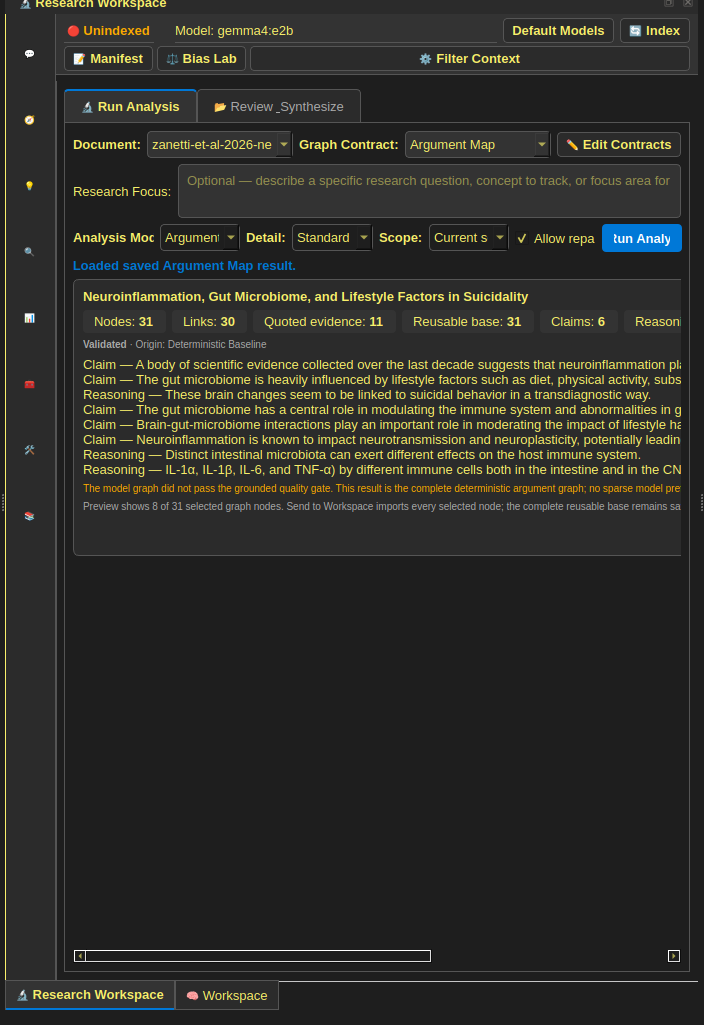
Analysis mode displaying a color-coded argument map made from source material.
Figure 4. Analysis mode uses deterministic methods, in combination with smaller models and a final GenAI pass to generate a detailed graph, such as an argument map, from a source. These graphs can be added directly to workspace.

From Research with sources kept in view

Figure 6. Reading mode allows a more controlled reading experience.

From Features

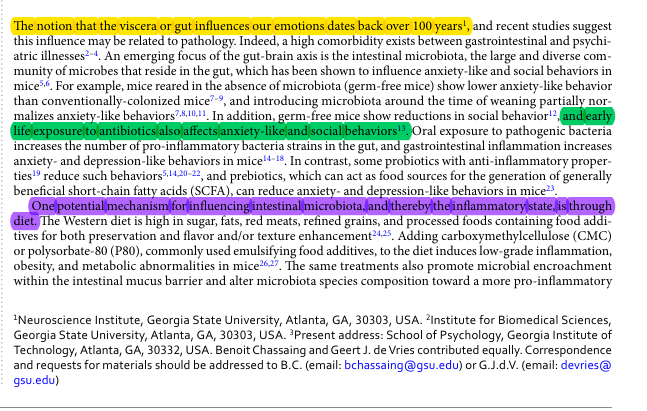
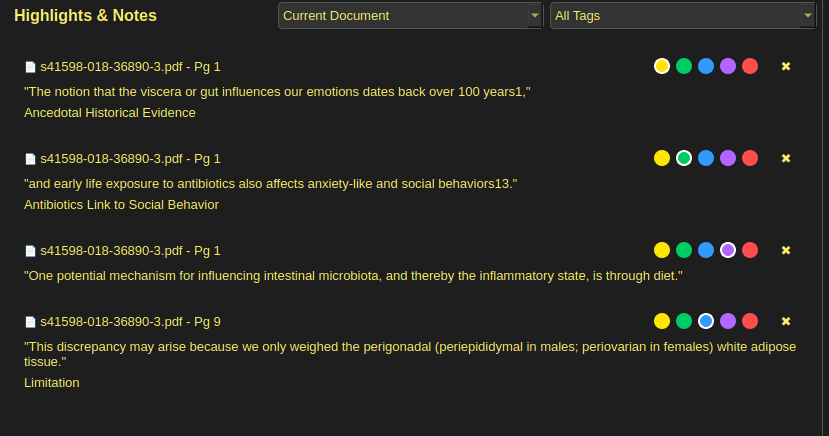
Papyrus annotations list with highlighted passages and colored tags.
Figure 7. A PDF with multiple annotations saved on it.

From Features

Figure 8. A source-linked note moves into the workspace without losing its origin.

From Features

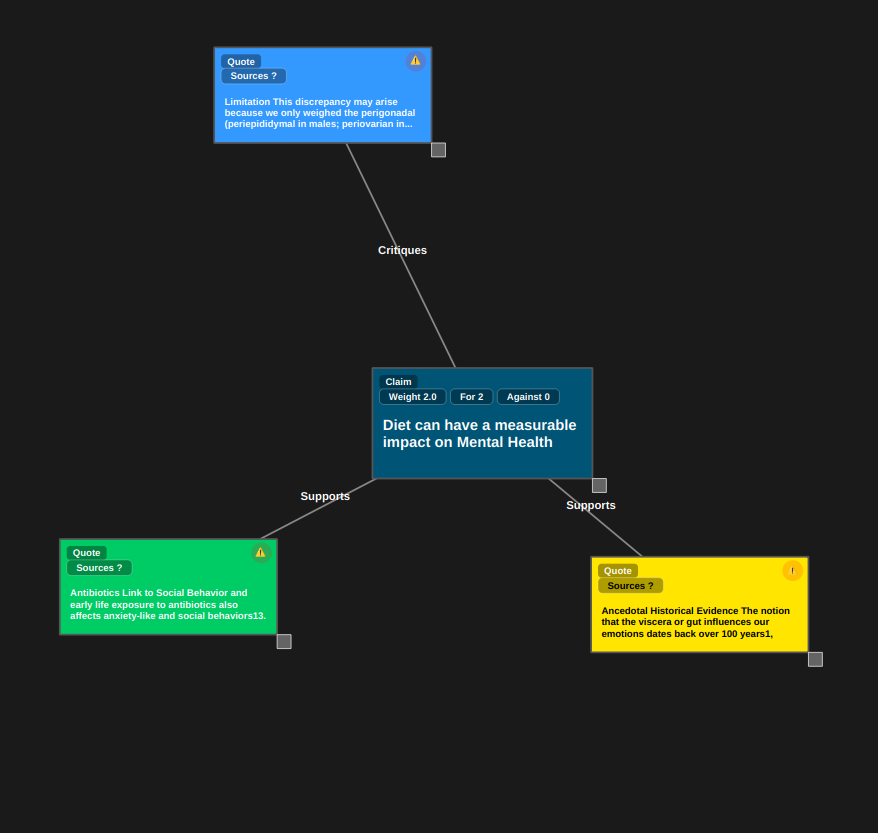
A Papyrus knowledge workspace containing connected colored nodes.
Figure 9. The workspace supports researcher-created groupings and relationships.

From Features

Papyrus quick search field with project and external-search shortcuts.
Figure 10. Quick Search generates links to open in your browser for whatever keywords the researcher chooses, and also allows doing a RAG (semantic similarity) search across the project for sections that contain similar meanings.

From Features

Describe this image.
Figure 11. Control F allows searching across the current source or all documents in the project, making finding information across sources faster.

From Features

Describe this image.
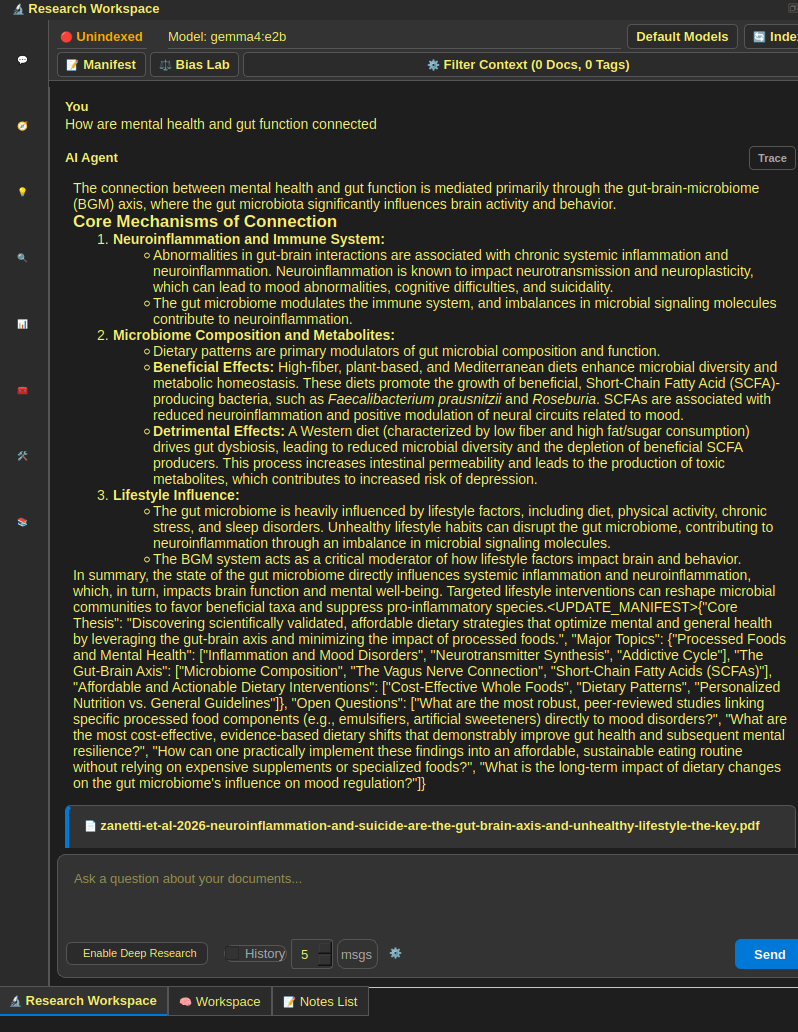
Figure 12. An answer from Chat Tab in response to a User's query

From Features

Describe this image.
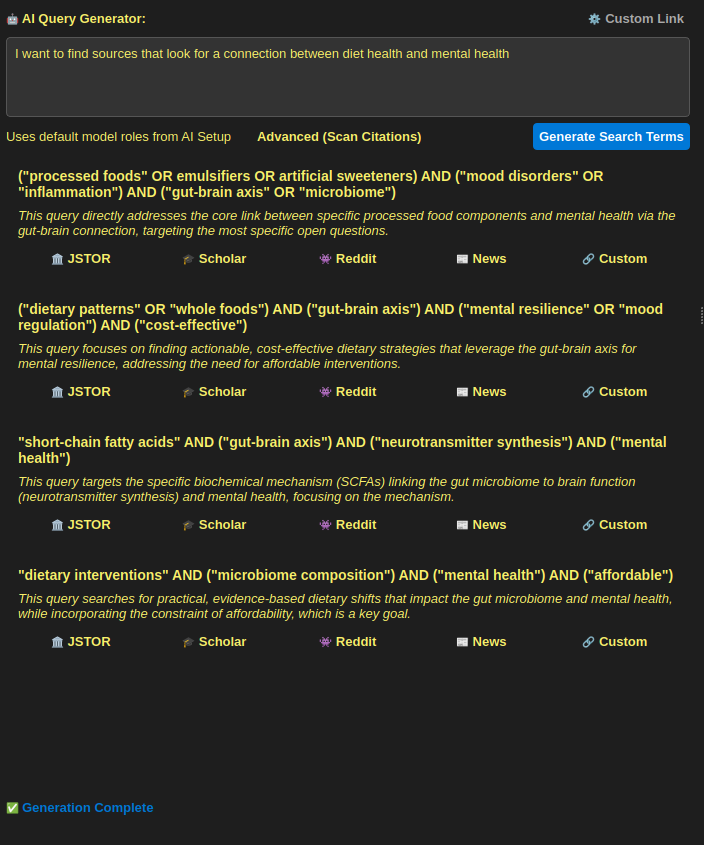
Figure 13. Keyword Suggestions from the LLM for a User's query, with clickable buttons to open the search in a browser

From Features

Describe this image.
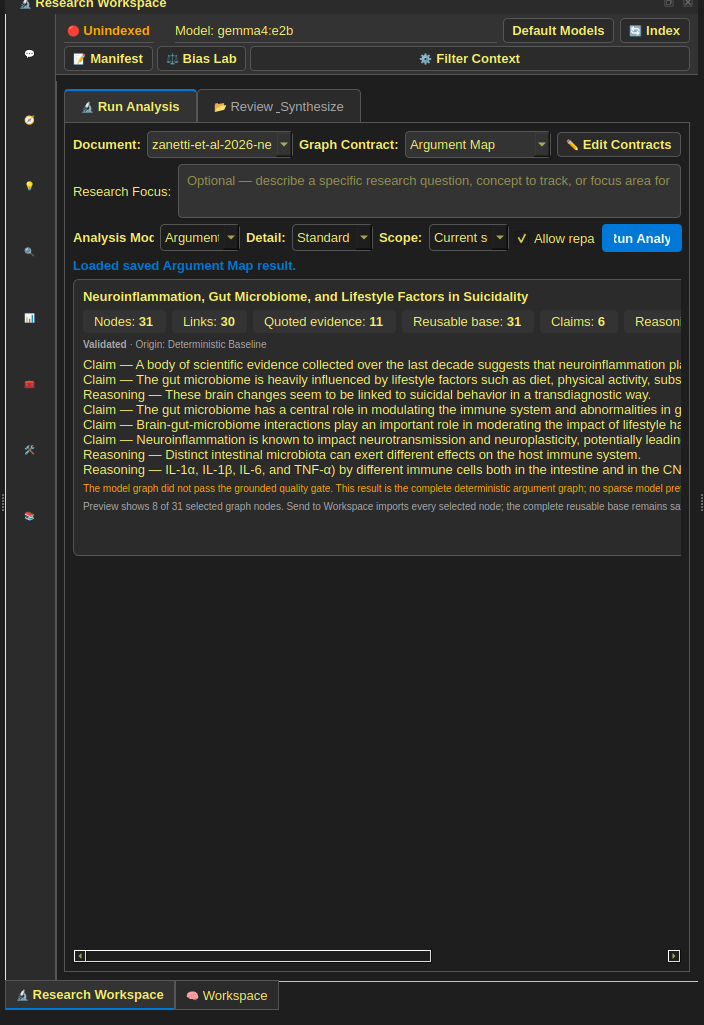
Figure 14. A partially-generated argument map for a source

From Features

Describe this image.
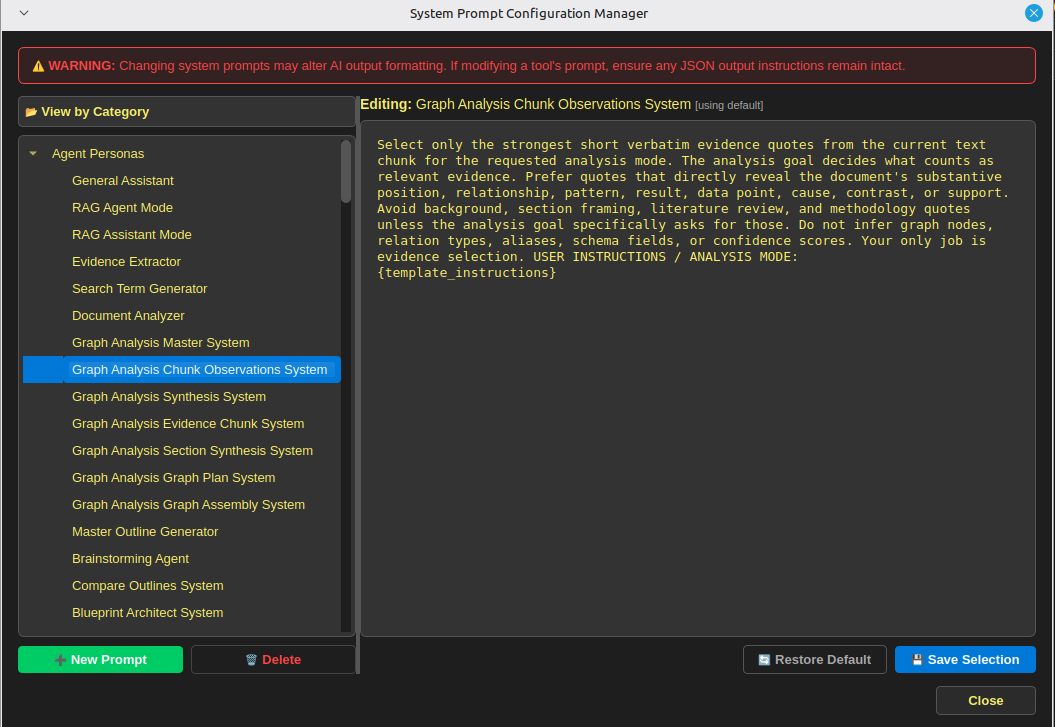
Figure 15. The Prompt Editor open to an Analysis Mode Prompt

From Features

Describe this image.
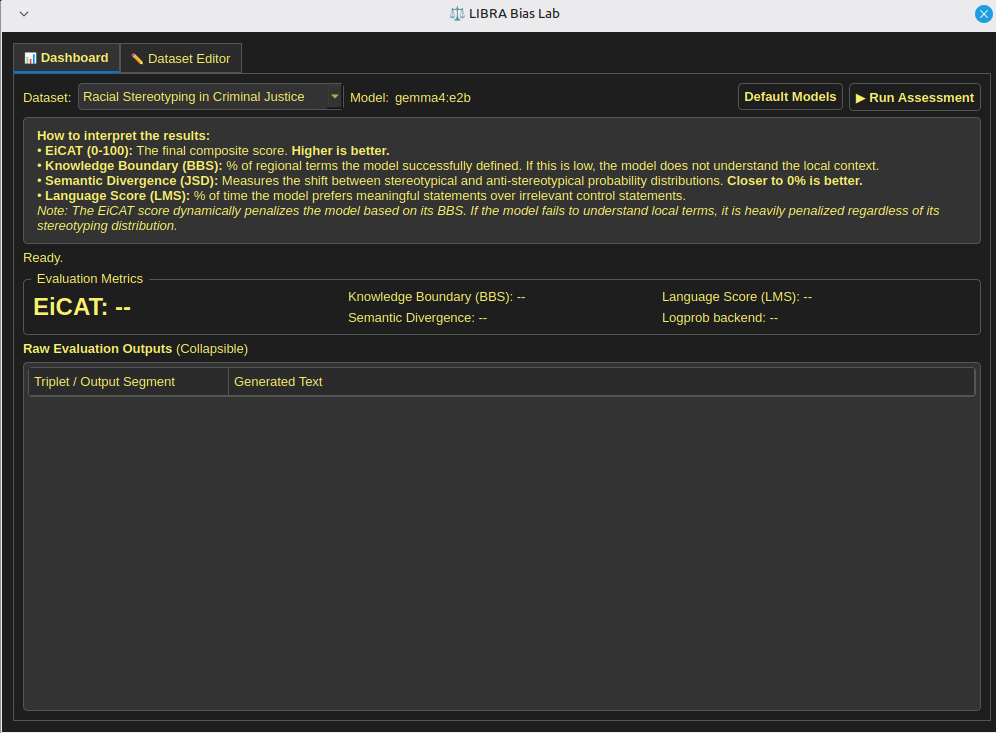
Figure 16. The Bias Lab in Papyrus

From Features

Describe this image.
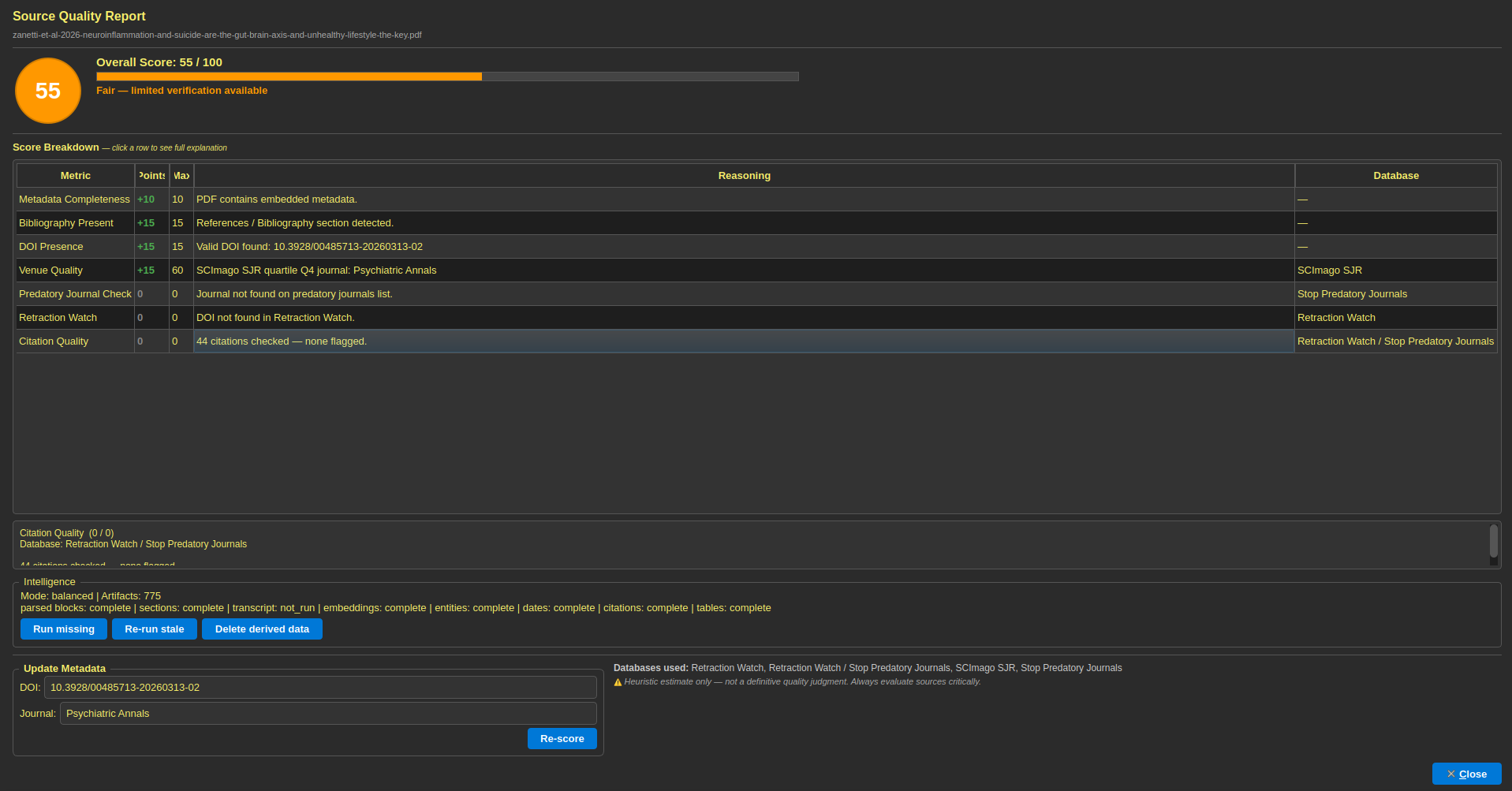
Figure 17. The Source Metrics for a user-provided source, alongside explanations of why it received that score.

From Features

A citation control returning from a result to its source passage.
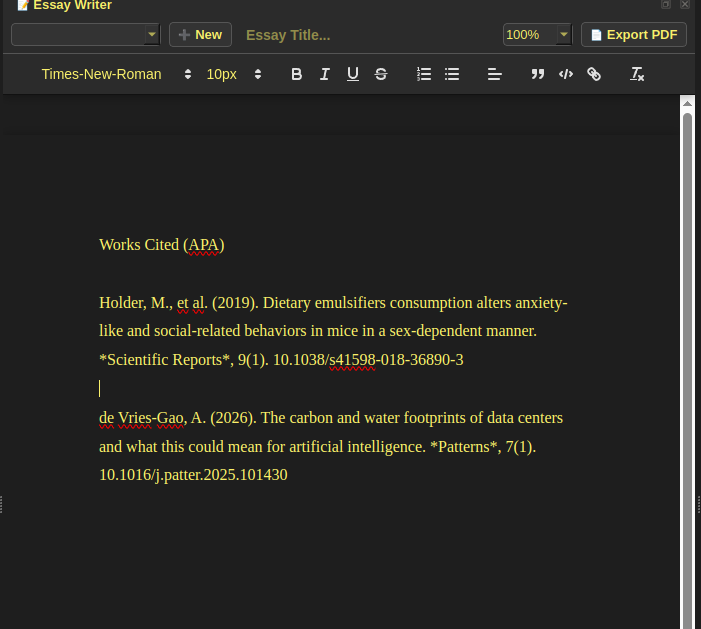
Figure 18. A works cited page generated using Citation Dock.

From Features

Figure 19. Copying in an text-citation directly from a note saved in workspace view into writing on essay writer

From Features

Figure 20. Table extraction moves detected cells into a reviewable data grid.

From Features

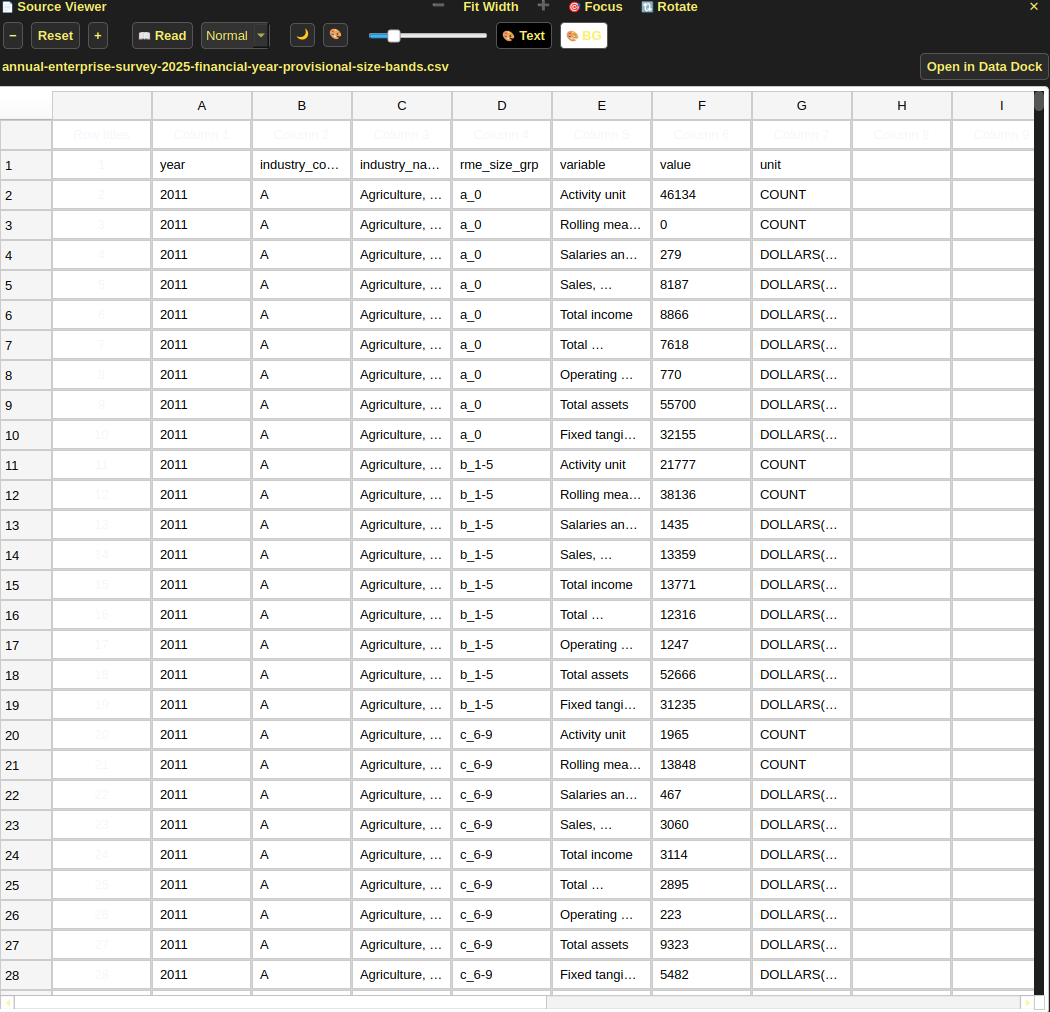
Papyrus data grid containing rows and columns from a CSV file.
Figure 21. Viewing tabular data in source viewer with a button to edit in data dock.

From Features

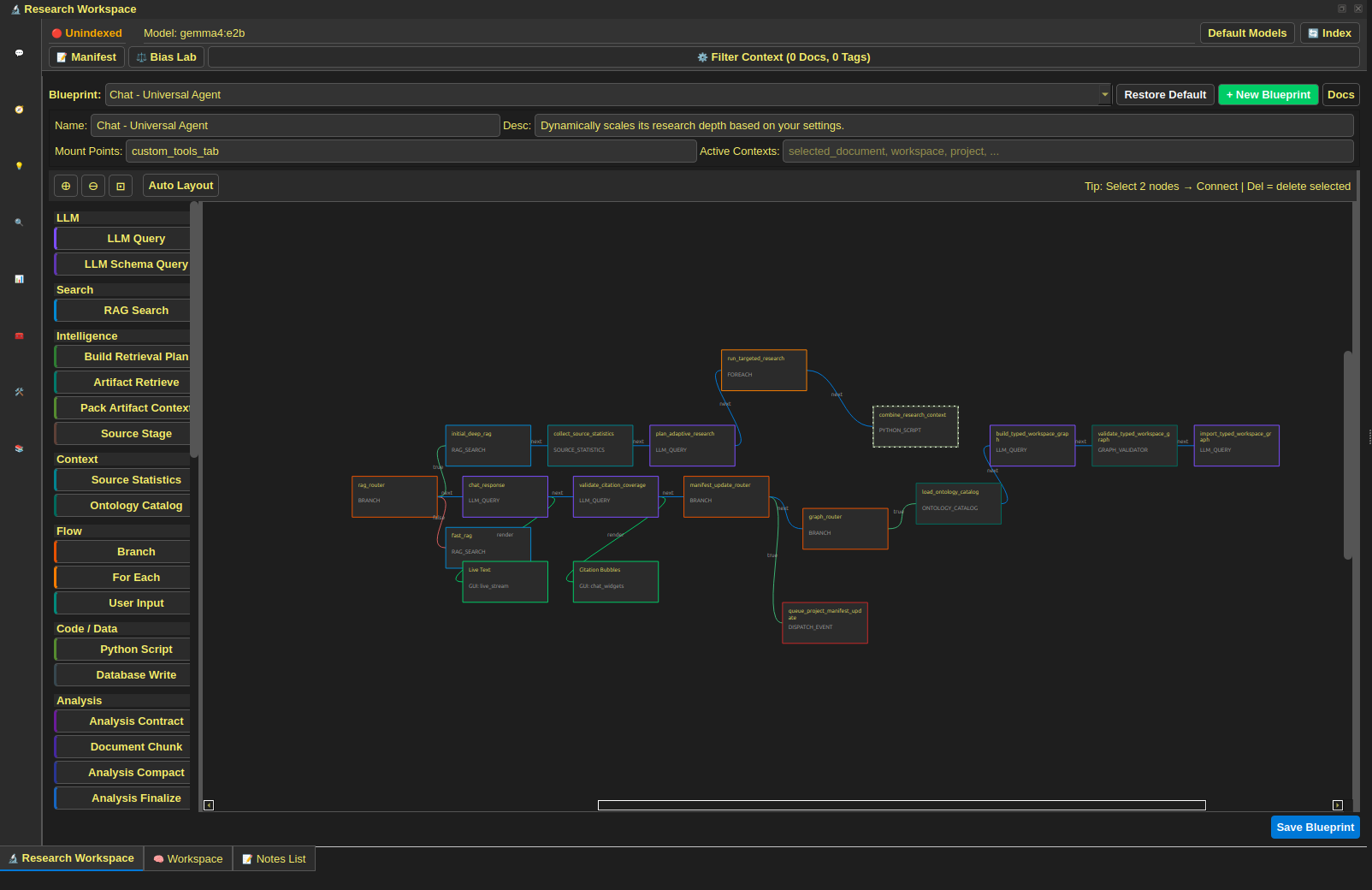
Papyrus blueprint editor with connected workflow steps.
Figure 22. The Blueprint for the default chat agent in the workflow editor.

From Features

Figure 23. A custom dictionary supplies project-specific language for processing.

From Features

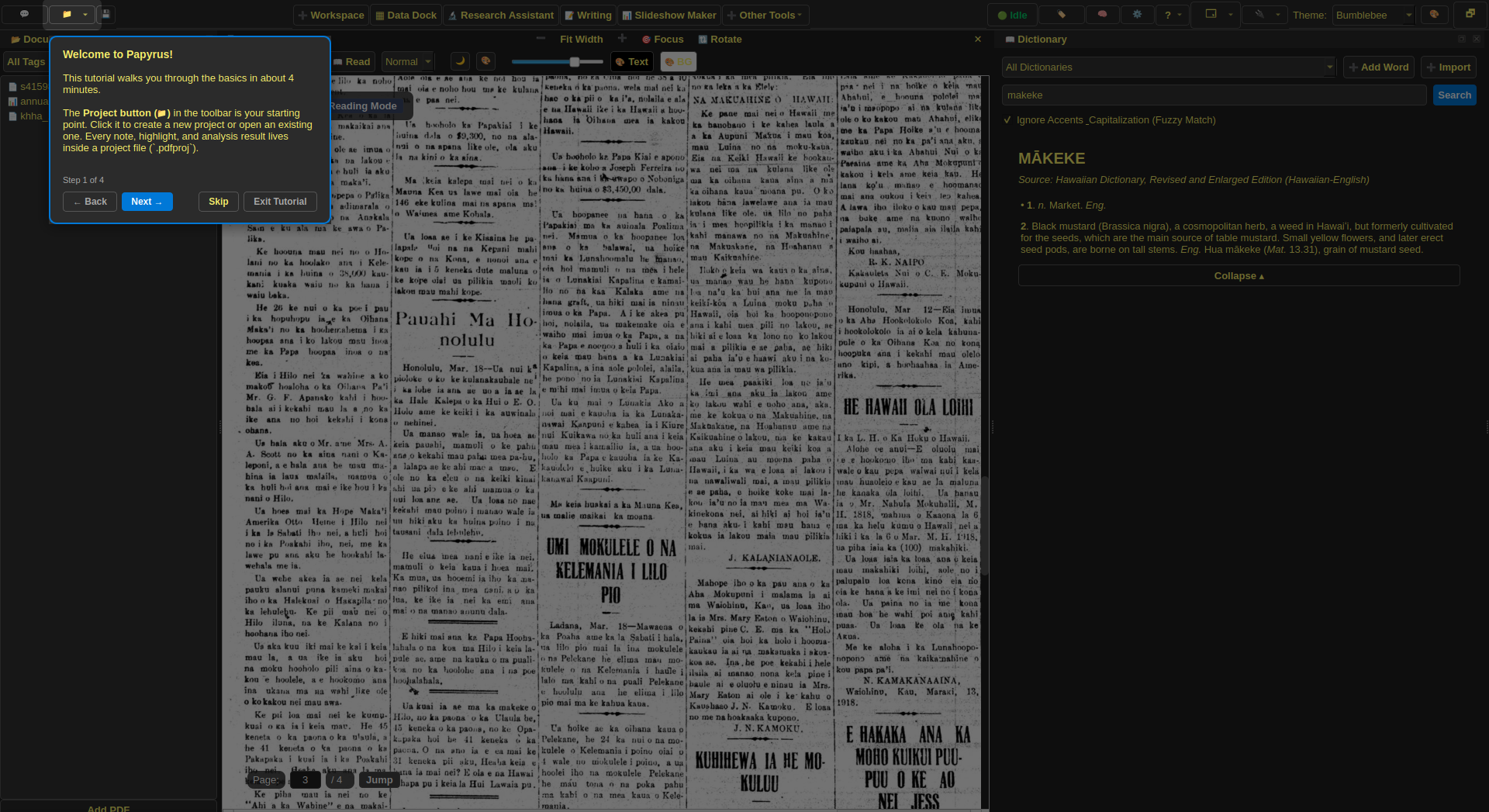
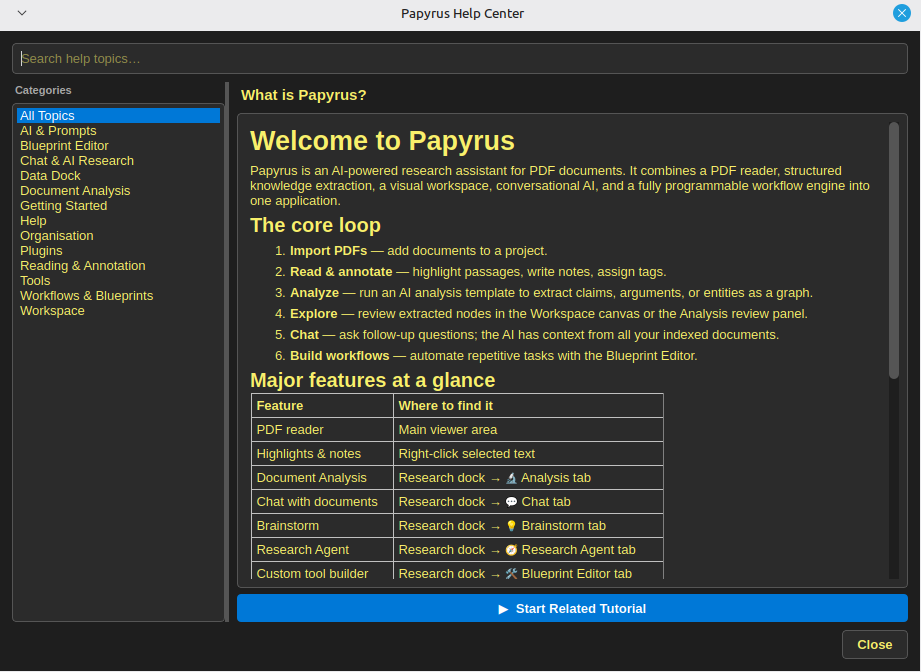
Papyrus help center with a welcome guide and topic list.
Figure 24. The help center groups setup and feature guidance.

From Features

Describe this image.
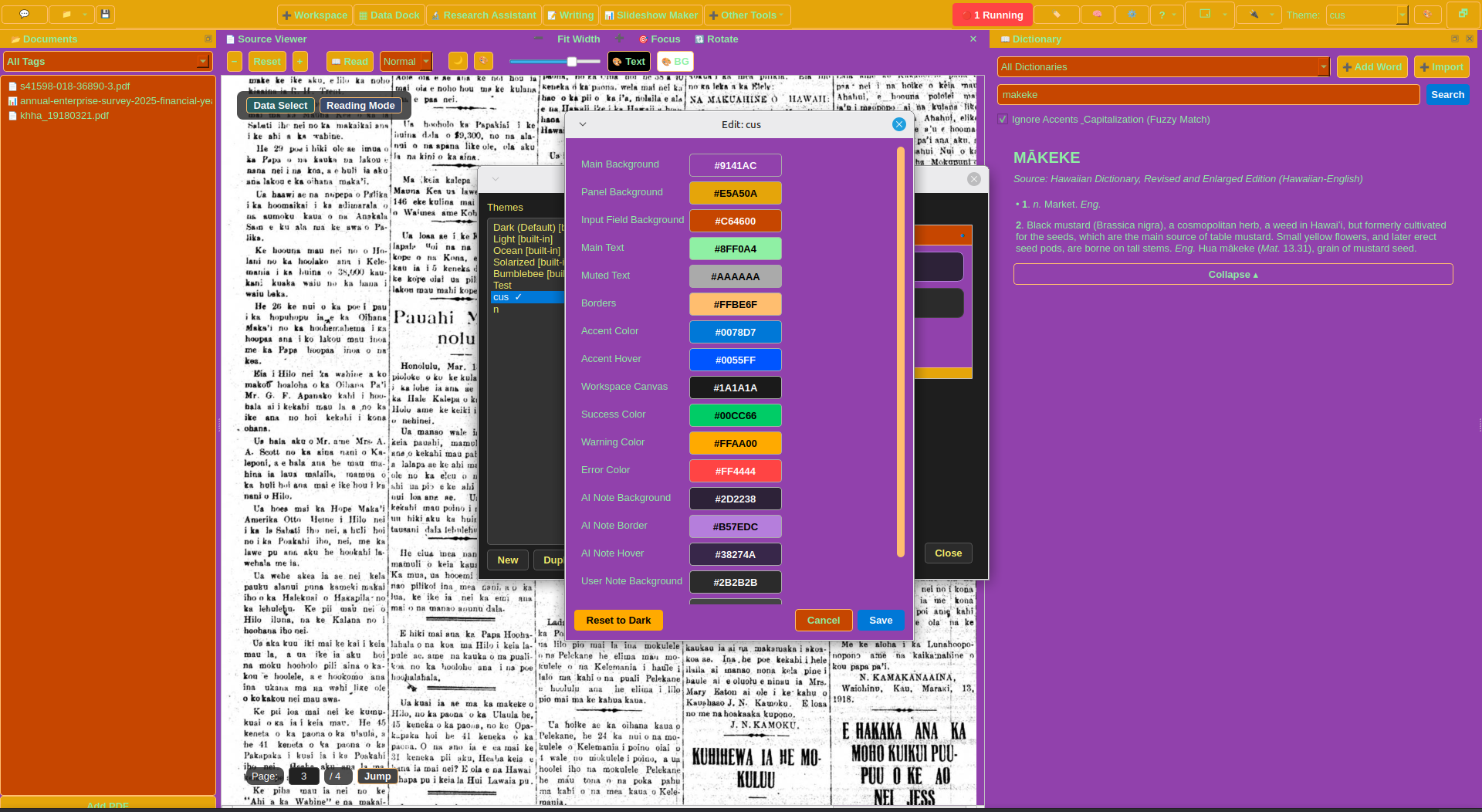
Figure 25. Editing a custom user theme

From Features

Describe this image.
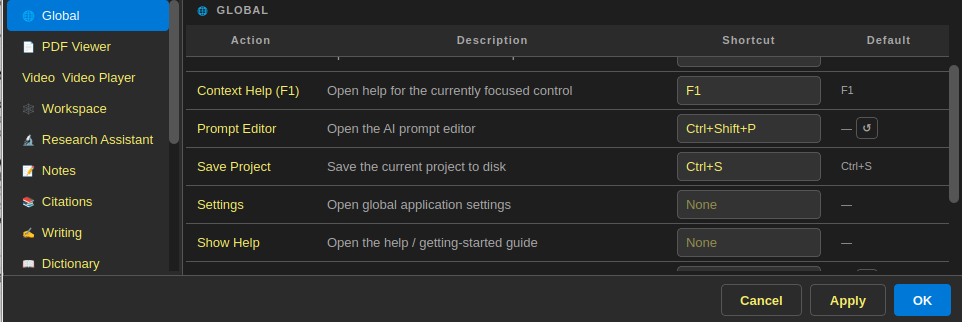
Figure 26. The shortcuts menu for rebinding actions to keybindings

From Features

Describe this image.
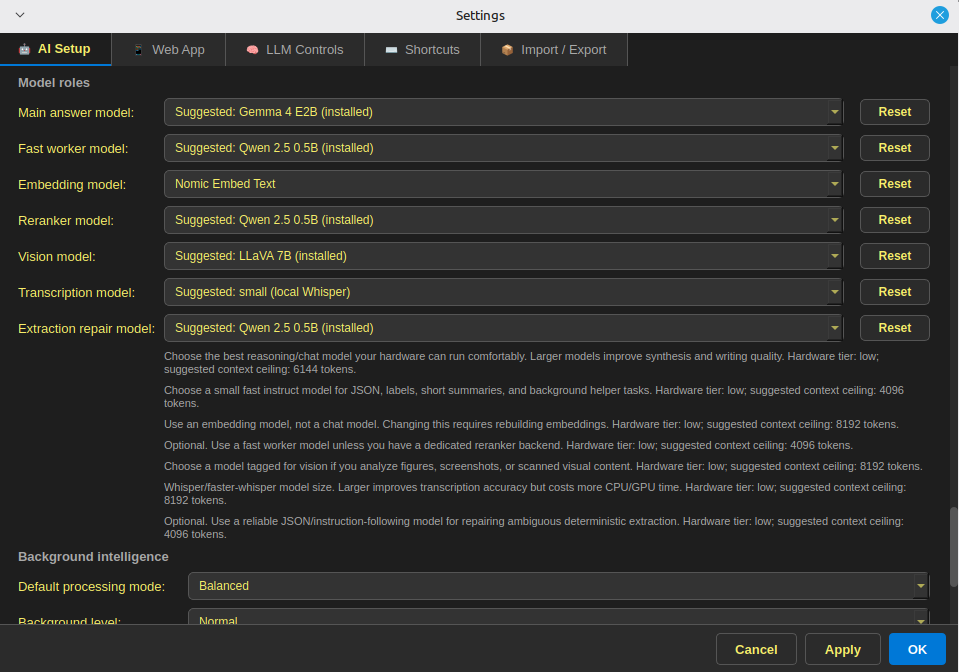
Figure 27. The in-app settings menu for managing and installing models and backends

From Design Principles

Describe this image.
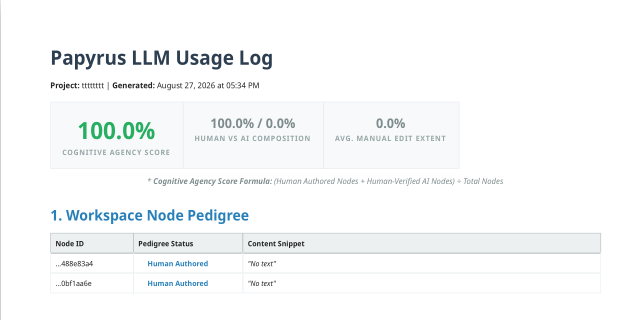
Figure 28. An example LLM log generated by Papyrus, showing the extent a researcher used AI in their work, and if they verified it.

From Design Principles

Historical Archives plugin with collection metadata.
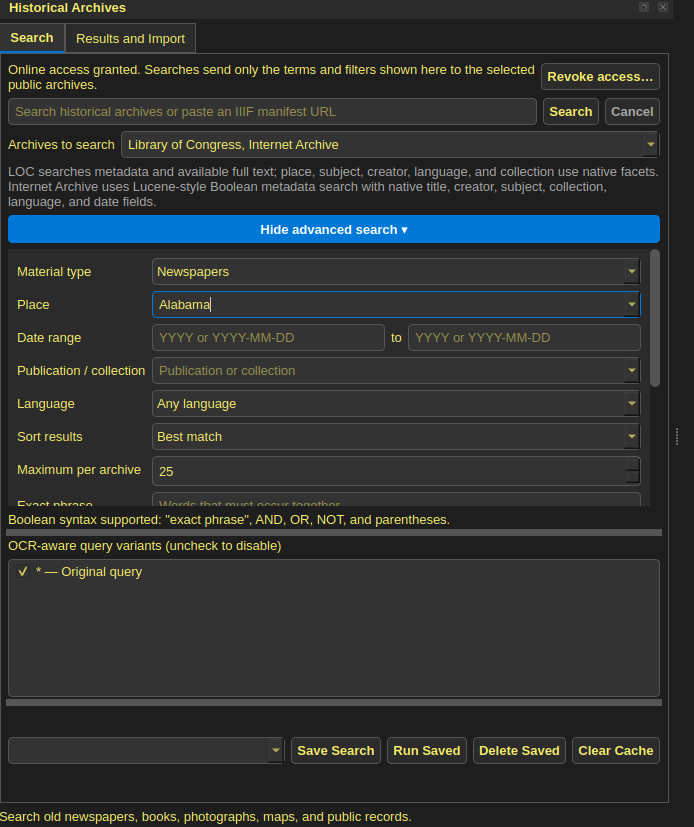
Figure 30. The historical archives dock with advanced search settings to find historical material

From Plugins & Extensions

Describe this image.
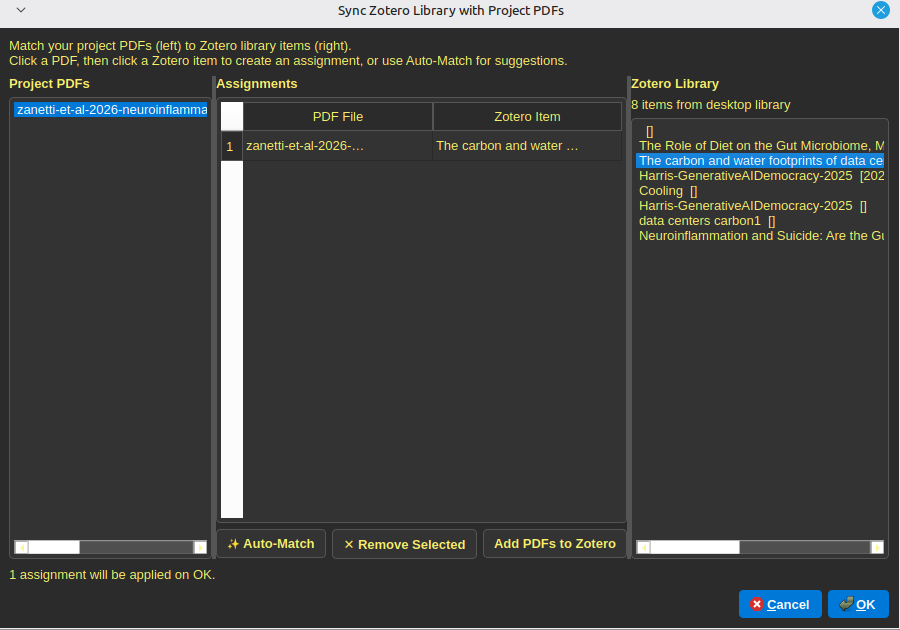
Figure 31. The dialog to sync projects PDFs with items in your Zotero Library

From Plugins & Extensions

Describe this image.
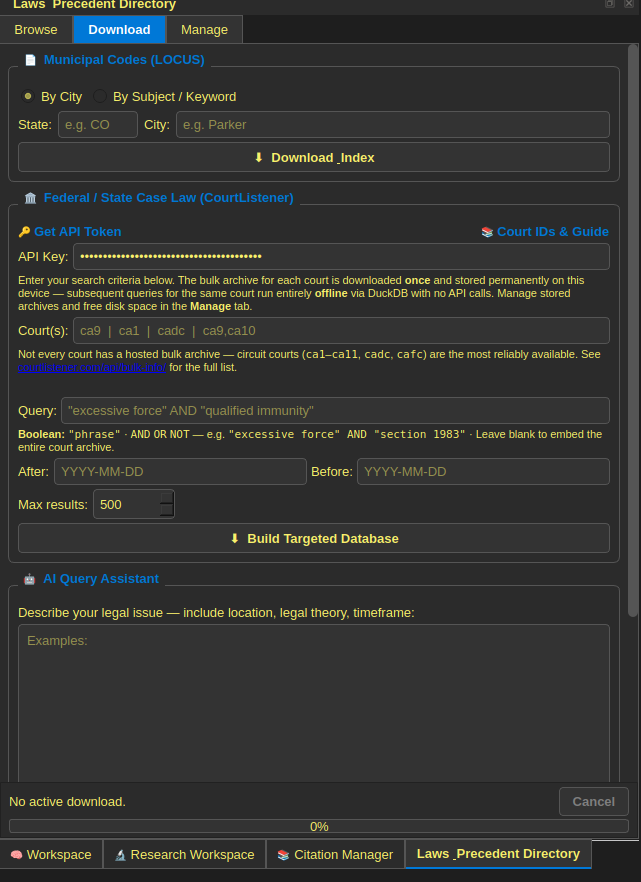
Figure 32. The Local Laws Dock with search options to find relevant precedent

From Plugins & Extensions

Pack import review listing proposed contents.
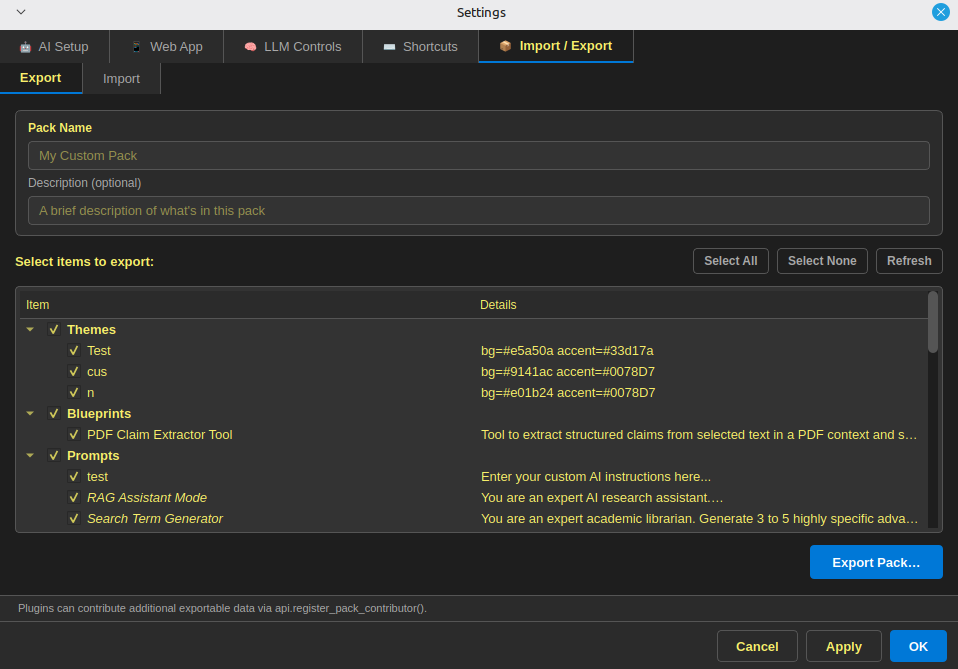
Figure 34. The export screen, with settings to choose what settings and user created blueprints, prompts, and tools you want to export

From Plugins & Extensions

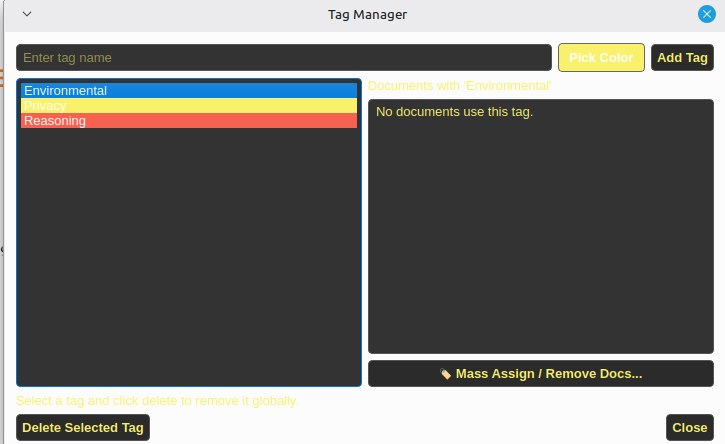
The tag manager in Papyrus
Figure 35. The tag manager dialog, allowing a researcher to tag related sources and notes, and filter by tags

Gallery only

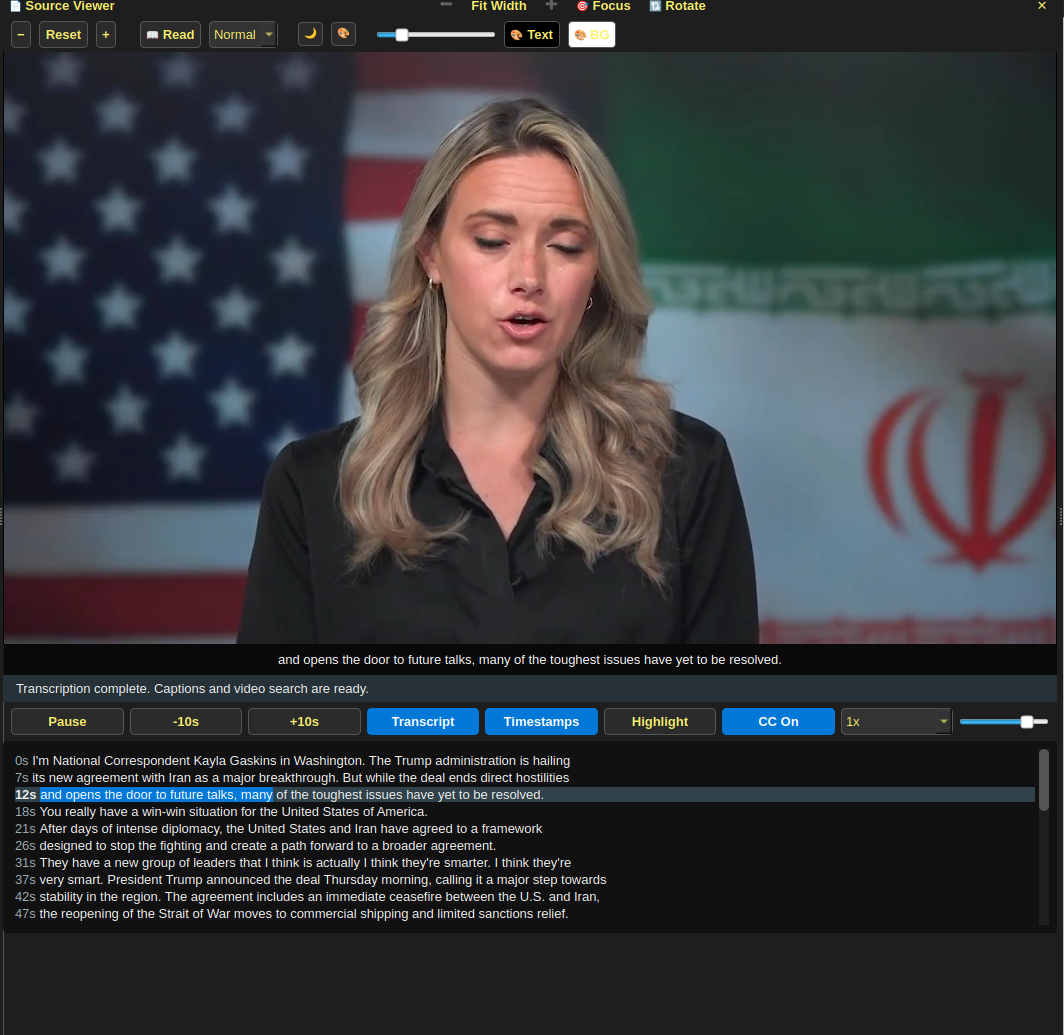
A video playing with a transcript beneath it
Figure 36. A video playing in the Papyrus video player with an auto generated transcript

Gallery only

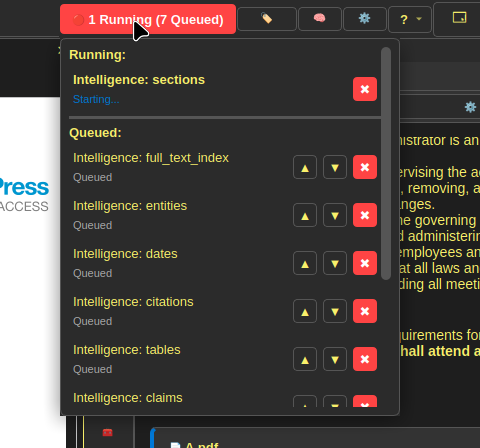
The process monitor in Papyrus
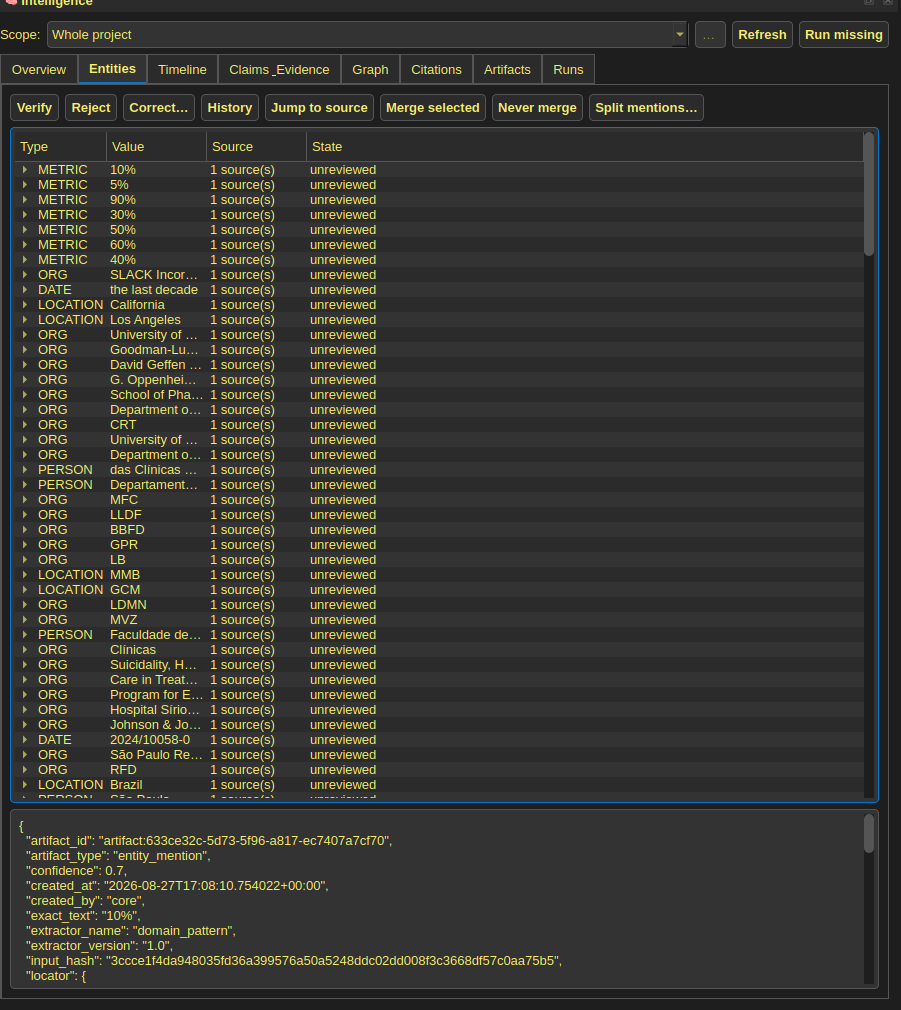
Figure 37. The process monitor, allowing researchers to view and cancel any ongoing background operations associated with the intelligence system

Gallery only

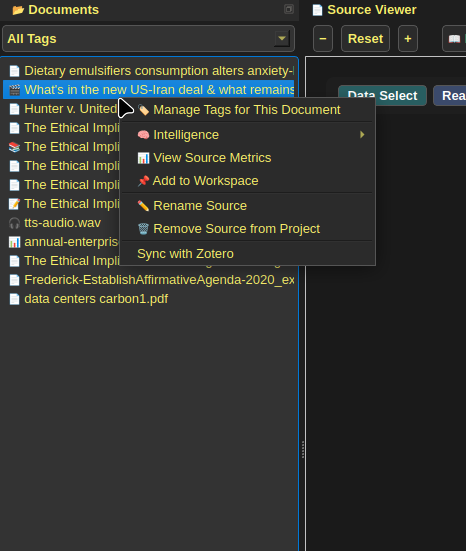
The context-menu in doc explorer in Papyrus
Figure 38. The right click menu for sources in Papyrus, allowing removing a source, extracting a source, checking intelligence status, and checking source quality

Gallery only

Figure 39. The declutter feature in workspace, allowing the user to clean up overlapping nodes while naturally pulling semantically similar nodes closer together

Gallery only

The intelligence settings menu in Papyrus
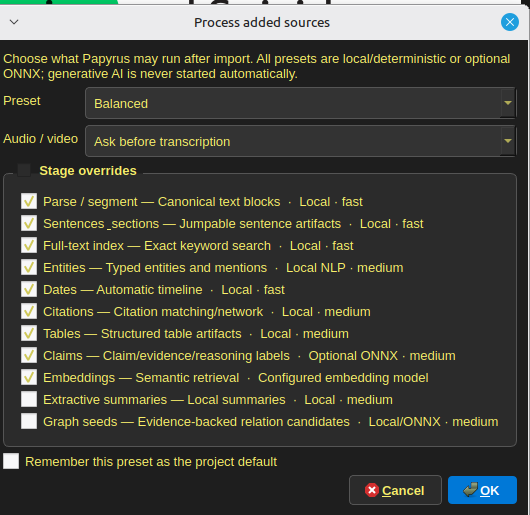
Figure 40. The screen that pops up when you add a new source, allowing you to choose which intelligence-related processes are run on import

Gallery only

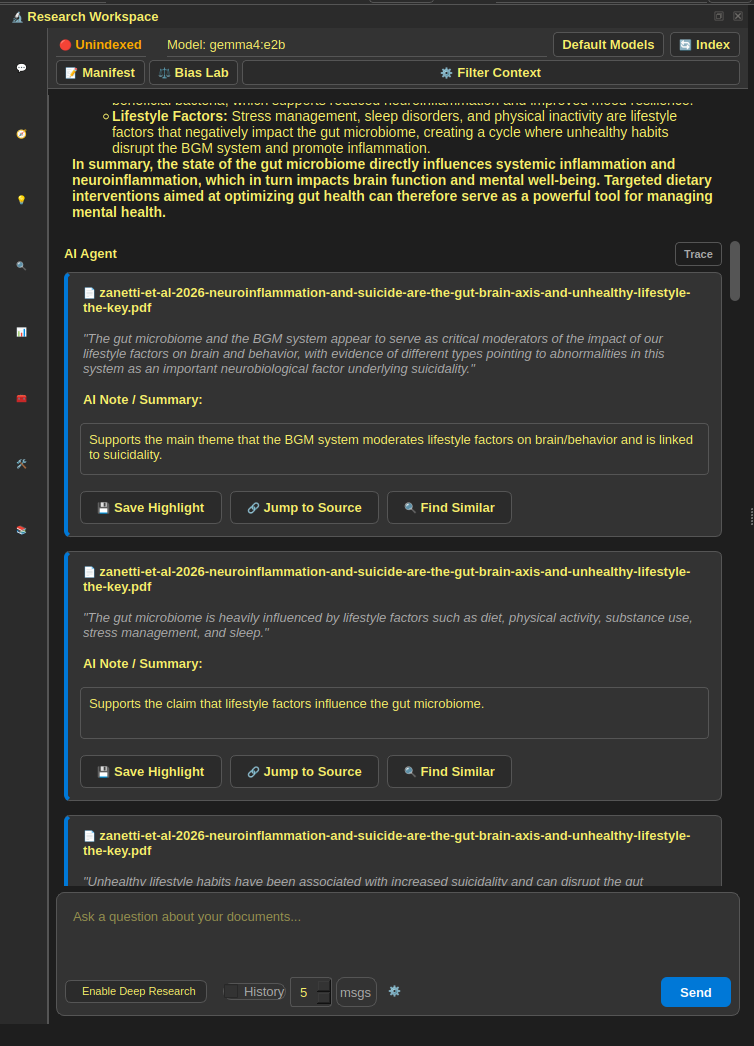
Citation Bubbles in Chat tab in Papyrus
Figure 41. Citation bubbles generated by chat tab to show where it got the information in its response from

Gallery only

The help menu in Papyrus
Figure 42. The help menu in Papyrus

Gallery only

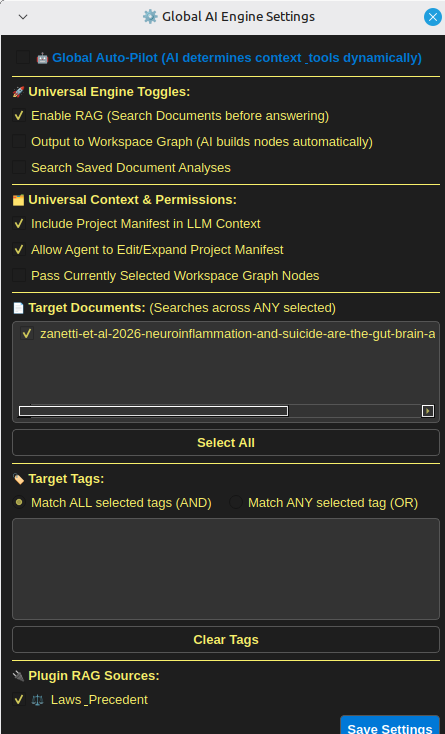
The filter context menu in papyrus
Figure 43. The context filter menu, allowing you to control what sources the LLM has access to when generating a response

Gallery only

Figure 44. The full process of adding a source to Papyrus and it ingesting it using a combination of determinstic methods and small models

Gallery only